How to set up wired backhaul for Wi-Fi 7 without tearing up drywall
Wired backhaul is the biggest single upgrade you can give a Wi-Fi 7 mesh. Here's how to add it using coax, powerline, or surface raceway in an afternoon.
Some links in this post are affiliate links. I get a small commission at no extra cost to you if you buy through them. I bought everything reviewed here at retail — nothing on this page is on loan.
Most mesh systems sold in 2026 will work fine over the air. That's the pitch. But if you've spent any time on a wireless-only mesh, you've felt the ceiling. The second a node has to relay through another node, throughput collapses and latency starts to wobble. The single biggest upgrade you can make to a Wi-Fi 7 mesh isn't a new router. It's a wire between the nodes you already own. And you don't need to fish cable through drywall to do it.
Why wireless backhaul is the actual bottleneck
Every mesh node has to do two jobs at once. Talk to your phones, laptops, and TVs. Talk to the other nodes. On a wireless-only mesh, those two conversations share the same airtime, and throughput gets cut roughly in half at every hop. Add a third node downstream and you stack that penalty again. The third node ends up serving clients on whatever radio time is left after the relay traffic.
The MoCA Alliance ran field tests on this exact scenario, comparing three popular Wi-Fi mesh products with wireless backhaul against the same kits running MoCA backhaul. The wired-backhaul versions showed what the alliance called "dramatic improvement" in client throughput and latency consistency. That isn't marketing language for a 10% bump. It's the difference between mesh that works and mesh that feels like a single fast router across the whole house.
A wire between the nodes moves the node-to-node conversation off the air entirely. Every radio in every node is freed up to do nothing but serve your devices. On a Wi-Fi 7 mesh with a 6 GHz radio, that's the difference between using your fastest band as a dedicated client lane versus using it as an internal data trunk.
Three no-drywall wired backhaul methods, in priority order
Pick the cheapest one that works in your house. Don't over-buy.
1. MoCA 2.5 over existing coax
If your house was built any time in the last forty years, there's almost certainly coax running between the rooms where you want nodes. Cable TV jacks, satellite drops, defunct phone closets. That wire is a dormant Gigabit-class backbone waiting for adapters on both ends.
MoCA 2.5 is the relevant standard. The MoCA Alliance specs it at 2.5 Gbps MAC throughput with under 2.5 ms one-way latency, operating on 400 to 1675 MHz which sits above the cable TV band so it co-exists with whatever your ISP is doing on the same line. In practice, two ScreenBeam ECB7250 adapters or two ASUS MA-25 units do the job for around $200 the pair. Plug one near the router, run a short Ethernet cable into a coax wall jack. Plug the other near the remote node, run Ethernet out of its coax jack into the node's LAN port. Mesh sees a wired link.
The one gotcha: install a MoCA filter (also called a point-of-entry filter, ~$10) at where the coax enters your house. It keeps your MoCA signal from leaking onto the cable feed and stops your neighbor's signal from leaking into yours. Some MoCA kits include it. Most don't.
2. G.hn 2400 over powerline
When coax doesn't reach where you need a node, the next ladder rung is powerline. G.hn 2400 is the current generation, rated for 2400 Mbps MIMO or 1200 Mbps SISO with a documented PLC range of up to 500 metres of wiring. The Zyxel PLA6456 kit is the easy buy on US Amazon. Plug one adapter near the router, one in the wall socket near the remote node, and the pair self-configures within two minutes.
Real-world powerline throughput is a lottery. The 2400 Mbps figure is a marketing ceiling. What you actually get depends on whether the two outlets are on the same electrical circuit, how much noise your appliances dump onto the line, and whether an AFCI breaker is in the path. Plan for 300 to 800 Mbps in a typical install. That's plenty for a single remote node serving a TV and a couple of phones. It is not a substitute for MoCA 2.5 when MoCA is an option.
Important: G.hn is not compatible with the older HomePlug AV2 standard. If you have AV2 adapters in a drawer from 2018, they will not talk to a G.hn kit.
3. Surface raceway when neither wire exists
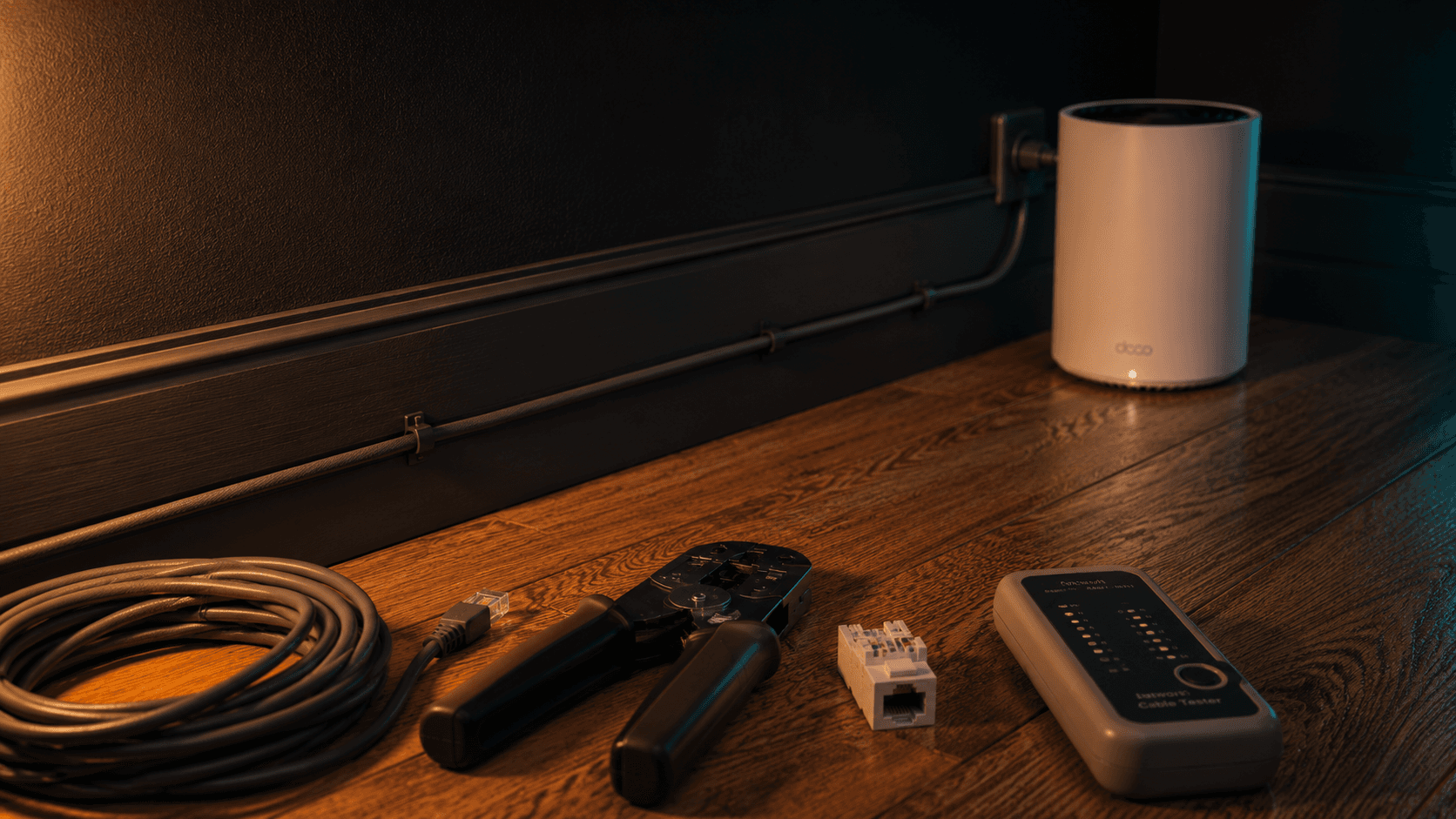
If a node lives in a spot with no coax and no useful nearby outlet, the unglamorous answer is to run actual Ethernet along the baseboard inside a paintable surface raceway. Wiremold and Legrand both make channel that's about 1/2" tall, takes interior-latex paint, and disappears after one coat. An afternoon's work, no drywall holes, fully reversible when you sell the house.
This is also the only method that gives you the full speed of the cable you run. Cat6a in a raceway is 10 Gbps end to end, which matters exactly zero today for a Wi-Fi 7 node but matters a lot in 2029 when you replace it with whatever comes after Wi-Fi 7.
Get the weekly brief in your inbox.
One Sunday email. What I tested, what’s next, one link worth your time.
Configuring the mesh after the wire is in
Most modern mesh systems detect a wired backhaul automatically the moment you connect a LAN port on the remote node to anything that ends at the main router. If your nodes have an LED, the color usually changes (TP-Link goes from amber to white on the Deco line). If you can't tell from the LED, the app will show it. Look for "Ethernet backhaul" or "Wired" next to each node in the topology view.
If yours doesn't auto-detect, dig into the advanced settings. The toggle is almost always there, usually labeled "Ethernet backhaul mode" or "Daisy-chain via LAN." On the TP-Link Deco BE63 I'm running right now, no toggle is needed. The moment the second node sees a wired uplink, the wireless backhaul radios free up. I covered the BE63 setup in detail in my BE63 vs X68 comparison if you want the full walk-through on that kit.
What to expect after
Two things change immediately and one thing changes slowly.
Immediately: client throughput on the remote node jumps, usually doubling on a two-hop setup. Latency under load gets visibly tighter. Pings stop spiking when someone else on the network starts streaming or a backup job kicks off.
Slowly: roaming improves. With every node having a clean, dedicated path back to the router, the mesh's roaming logic stops second-guessing itself, and the mid-walk handoff between nodes happens faster because the destination node always has bandwidth to accept the client.
If you're on a wireless-only mesh today, this is the cheapest meaningful upgrade you can buy in 2026. A pair of MoCA 2.5 adapters and a Saturday afternoon will outperform replacing your whole mesh with a more expensive wireless-only kit.
Subscribe below for the weekly brief. One Sunday email with the gear and tooling notes that actually move performance.